Drawing Solid Tools
1. Load Tool drawing, or draw a new one.
2. Set Current Layer to Solid.
3. Current Color can be any color (color won't show up during plotting).
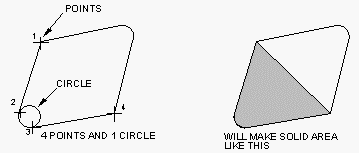
4. Make points around the desired outline, creating a polygon. The polygon will be automatically closed between the last point and the first point. The points must be in right order around the shape or the filled polygon will not come out the right shape.
5. For making radii on the tools, make circles at those places.
6. Save the Tool File.
The polygon and circles you make on the tool will be filled in black color as the tool moves along during plotting, thereby erasing the color of the solid stock boundary.
The solid area of the tool should be as small as possible, to not slow down the drawing process too much - because the solid area of the tool is redrawn at every step along the tool path.
If some of the lines or arcs you made in the drawing don't seem to be showing up during plotting, it could be because you have some duplicate elements drawn on top of others. This is because the duplicate element is erasing both elements.
See also: Solids
_________________________________________________________________
Copyright © 2020 i-Logic Software